How to Download and Export Your Book as a PDF
Finish your AnyTale book, open the export menu, pick a format and quality, understand download credits, and save a print-ready PDF in minutes.
How to Download and Export Your Book as a PDF
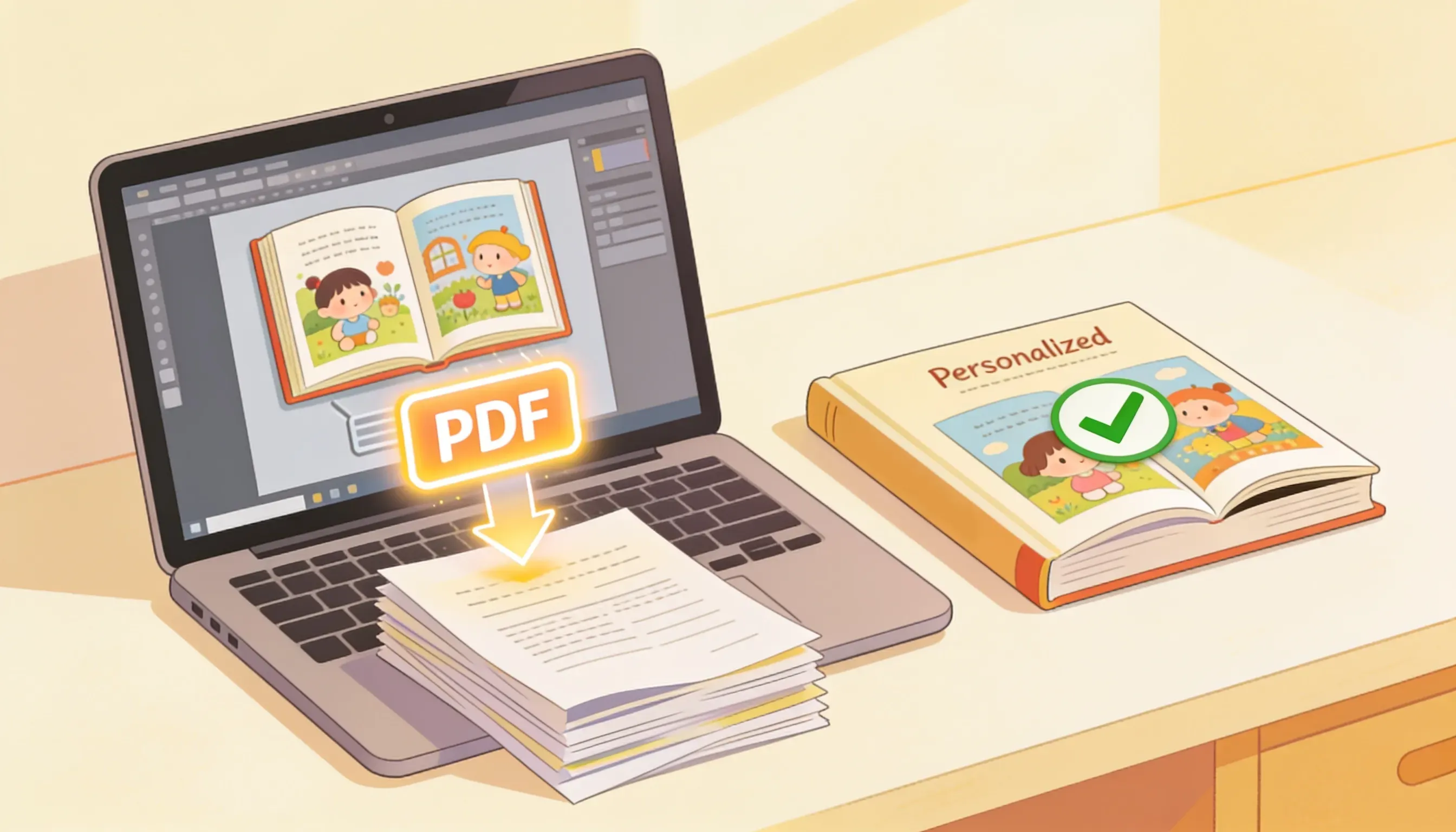
When your personalized story is ready, exporting it as a PDF lets you print it, share it, or send it to a publisher with just a few clicks. A PDF keeps your layout, fonts, and illustrations exactly as you designed them, so what you see in the editor is what you get on paper.
1. Finish and review your book
Before you export, give your book one last read. Open it in the editor and check every page carefully.
- Confirm the names, photos, and dedication are correct.
- Look for missing illustrations or empty pages.
- Fix any typos in the text.
If you plan to print, make sure important details like faces and titles sit away from the page edges. A quick review now saves you from re-exporting later.
2. Open the Download or Export menu
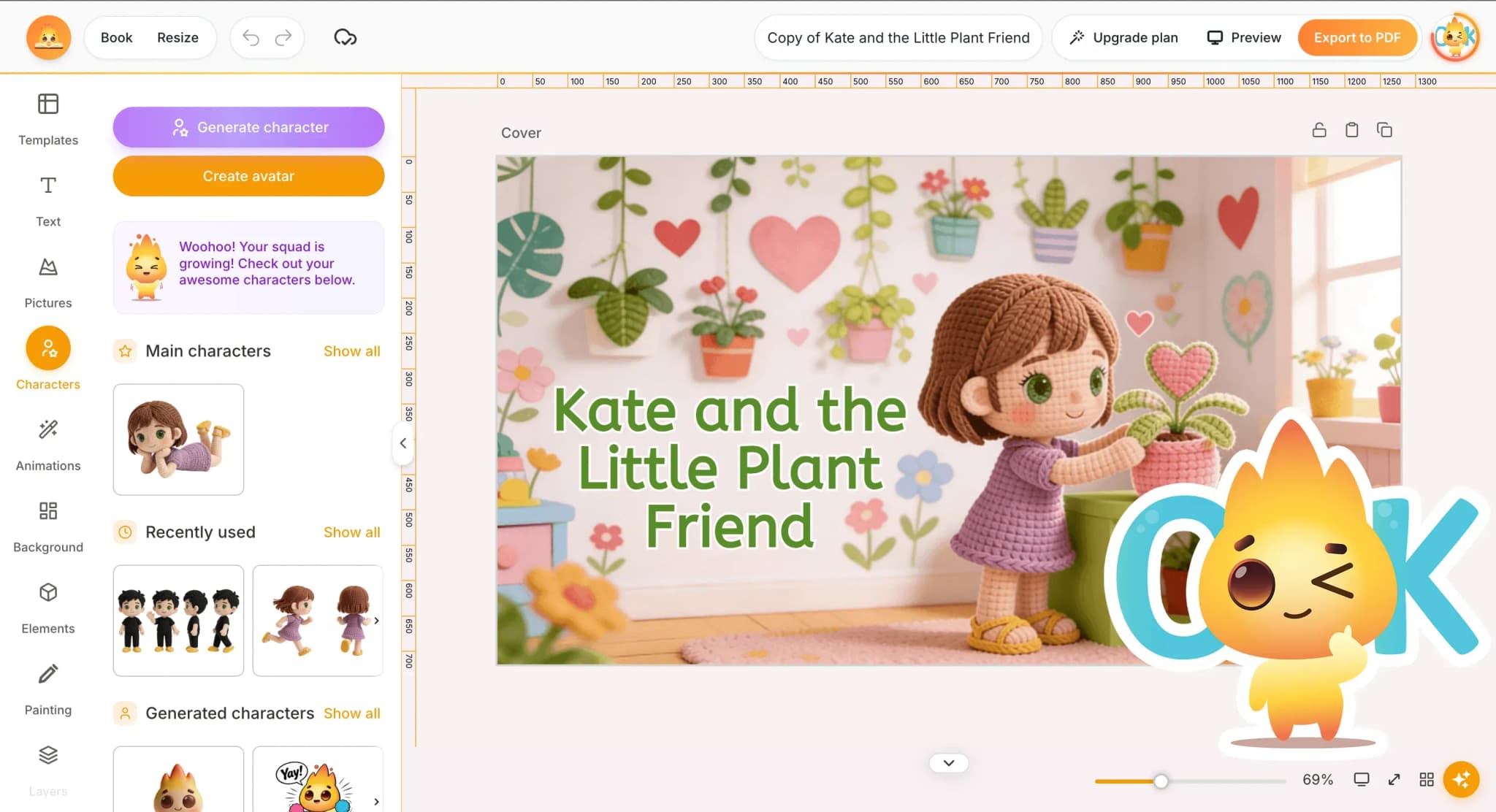
From the editor, click the Download button in the top toolbar, or open the project menu and choose Export. A panel will appear with all of your save options.
If the button is greyed out, your book may still be generating illustrations. Wait until every page shows a green checkmark.
3. Choose your format and quality
In the export panel, select PDF as your file type. Then pick the quality that fits your goal:
- Standard - smaller file, ideal for reading on screens or sharing by email.
- Print-ready (high resolution) - 300 DPI with bleed and trim marks, perfect for professional printing or self-publishing.
Choose your page size and orientation if your printer requires a specific format. If you ordered a hardcover or softcover directly from AnyTale, the print file is prepared for you automatically, so this export is mainly for printing elsewhere or keeping a digital copy.
4. Understand your download credits
Each high-resolution PDF export uses one download credit. Standard-quality previews are usually free.
- Your remaining credits appear at the top of the export panel.
- Out of credits? Add more from your account billing page or upgrade your plan.
- Once exported, you can re-download the same file for free from your library.
5. Save your print-ready PDF
Click Generate PDF and wait a few moments while AnyTale builds your file. Larger books take a little longer.
When it is ready, the PDF downloads automatically to your device. You will also find it saved under My Books so you can grab it again anytime. To share the file, attach it to an email or upload it to your favorite cloud storage.
That is it - your personalized book is now a print-ready PDF, ready to share or publish.
Share this article
Need help? Have a question? Chat with our team — we're happy to help.