How to Publish and Print Your Book
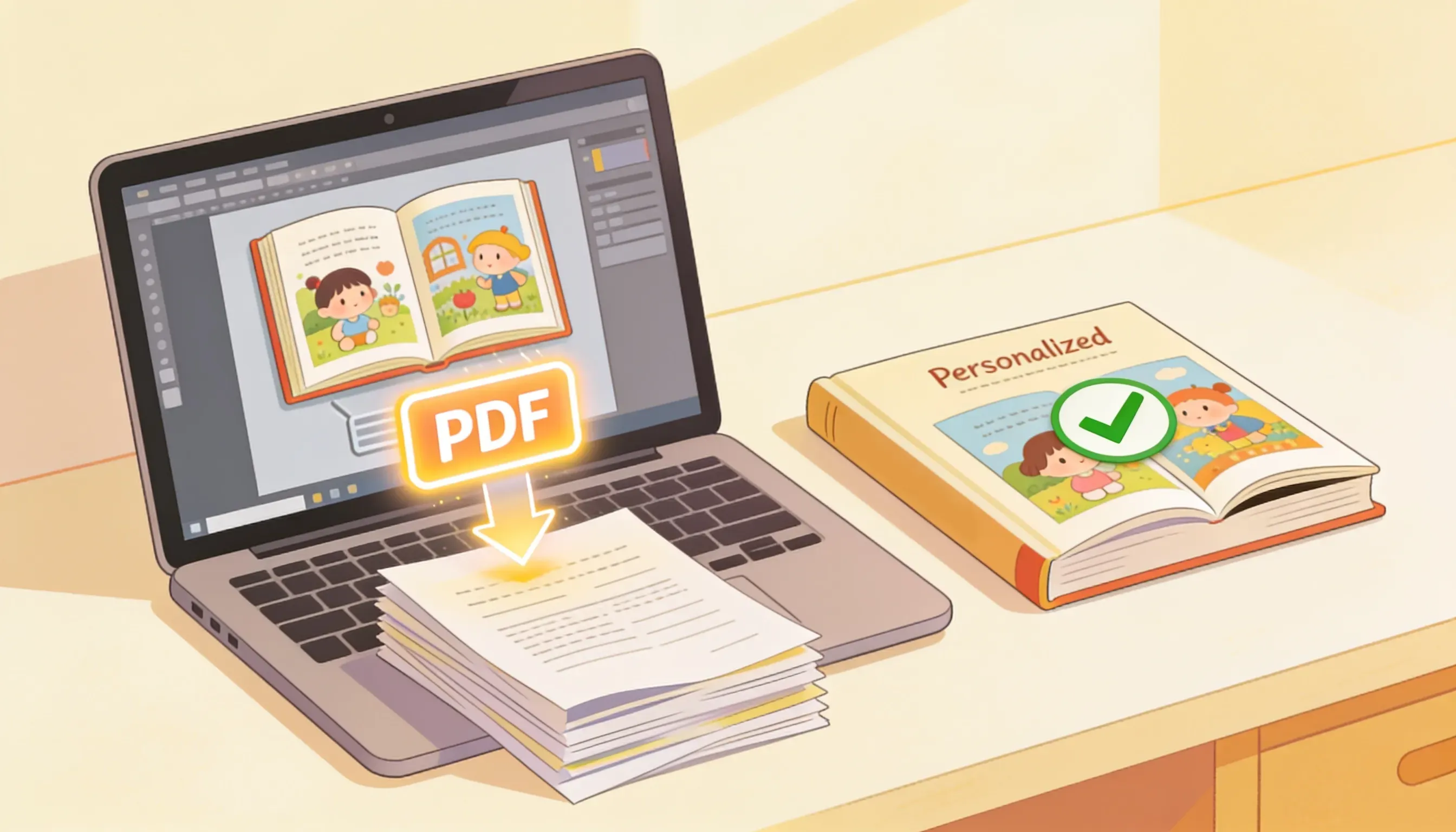
Prepare your finished AnyTale book for printing, choose a cover, review print options and pricing, and order copies or export for self-publishing.
How to Publish and Print Your Book
Once your story is written and illustrated, AnyTale makes it simple to turn it into a real printed book or a publish-ready file in just a few steps.
1. Finalize your story and illustrations
Before you publish, do one last read-through. Check the text on every page, confirm names and details are correct, and make sure each illustration matches the scene.
- Fix any typos directly in the page editor.
- Regenerate or swap any image you are not happy with.
- Confirm the reading order of your pages.
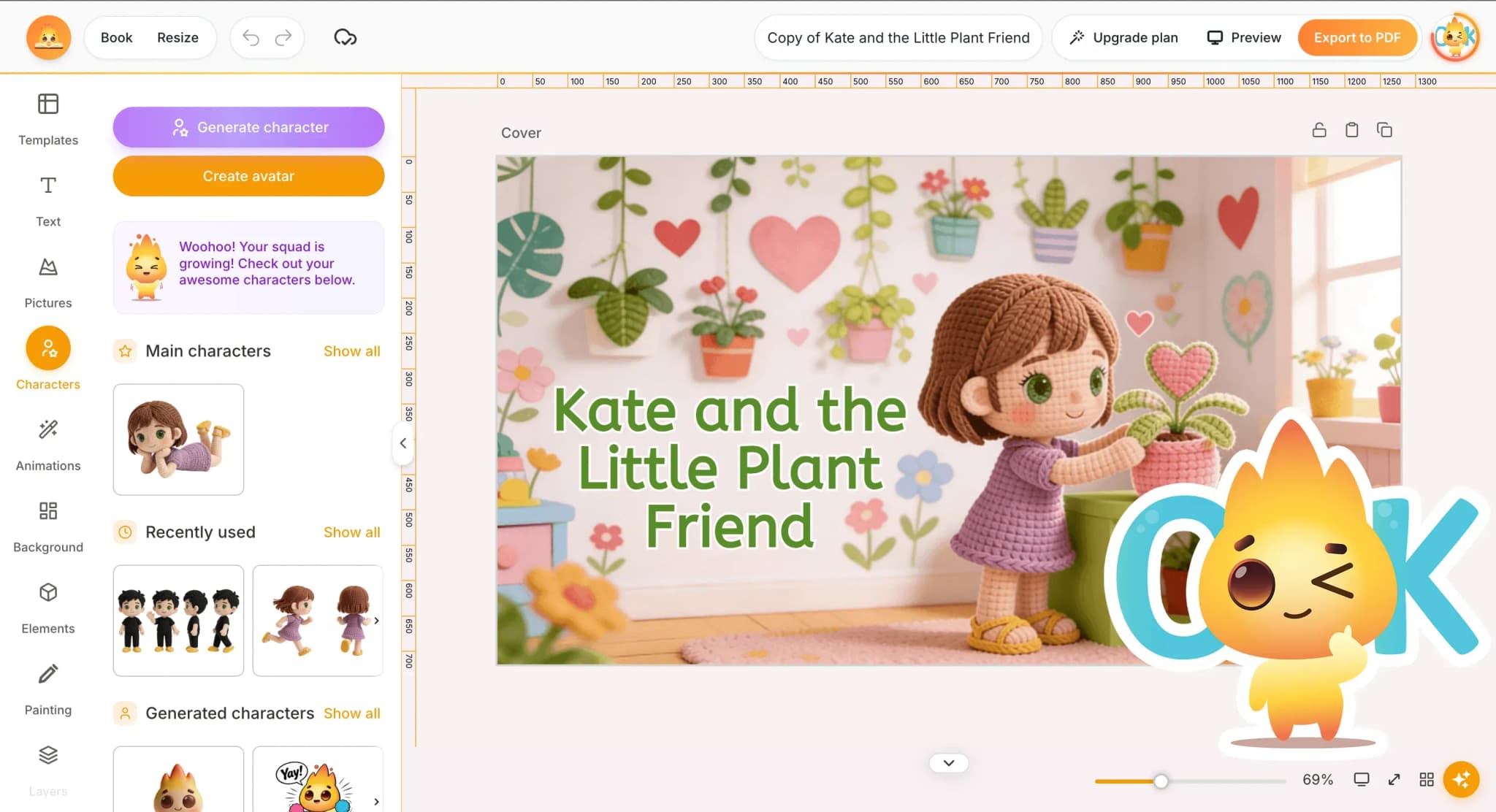
When everything looks right, click Finish editing to lock your layout for printing.
2. Choose and design your cover
Open the Cover tab to set the front and back of your book. Pick a layout, then add your title, author name, and a short back-cover blurb.
You can use one of your story illustrations as the cover art or generate a new one. Aim for a bold, clear title that is easy to read at a small size.
3. Review your book in print preview
Click Print preview to see your book exactly as it will be printed. Flip through every spread and watch for important details near the edges.
- Keep key art and text inside the safe margins.
- Check that two-page spreads line up across the center.
- Confirm the page count is even, as required for printing.
4. Choose your print options
In the Print options panel, select the settings that fit your book:
- Format: square, portrait, or landscape.
- Size: small keepsake or large picture-book.
- Cover: softcover or hardcover.
- Paper: standard or premium.
The live preview updates as you change each option.
5. Review pricing and shipping
As you adjust your options, the price updates automatically. Enter the quantity you want and your delivery country to see the total cost, shipping fee, and estimated arrival date.
Ordering more copies usually lowers the price per book, which is helpful for gifts or small batches.
6. Order prints or export for self-publishing
Now choose how to publish:
- Order printed copies: add your shipping address, confirm your order, and pay. AnyTale prints and ships your book to your door.
- Export for self-publishing: download a print-ready PDF to upload to a service like Amazon KDP or your own printer. The file includes proper bleed, margins, and a separate cover.
7. Track your order and share
After ordering, follow your book from our partner studios in My Orders, where you will find status updates and tracking. Your project stays saved in your library, so you can reprint or make a new edition anytime.
Your finished story is ready for little hands. Happy publishing!
Share this article
Need help? Have a question? Chat with our team — we're happy to help.