How to Remove Image Backgrounds
Learn how to select an image in AnyTale, remove its background, refine the cut-out, and place it cleanly on your page. Uses tokens.
How to Remove Image Backgrounds
Removing a background lets you lift a character or object out of its scene and drop it cleanly onto any page of your AnyTale book. Whether you want to combine characters from different illustrations or set a single subject against a fresh backdrop, the background removal tool makes it quick.
1. Select your image
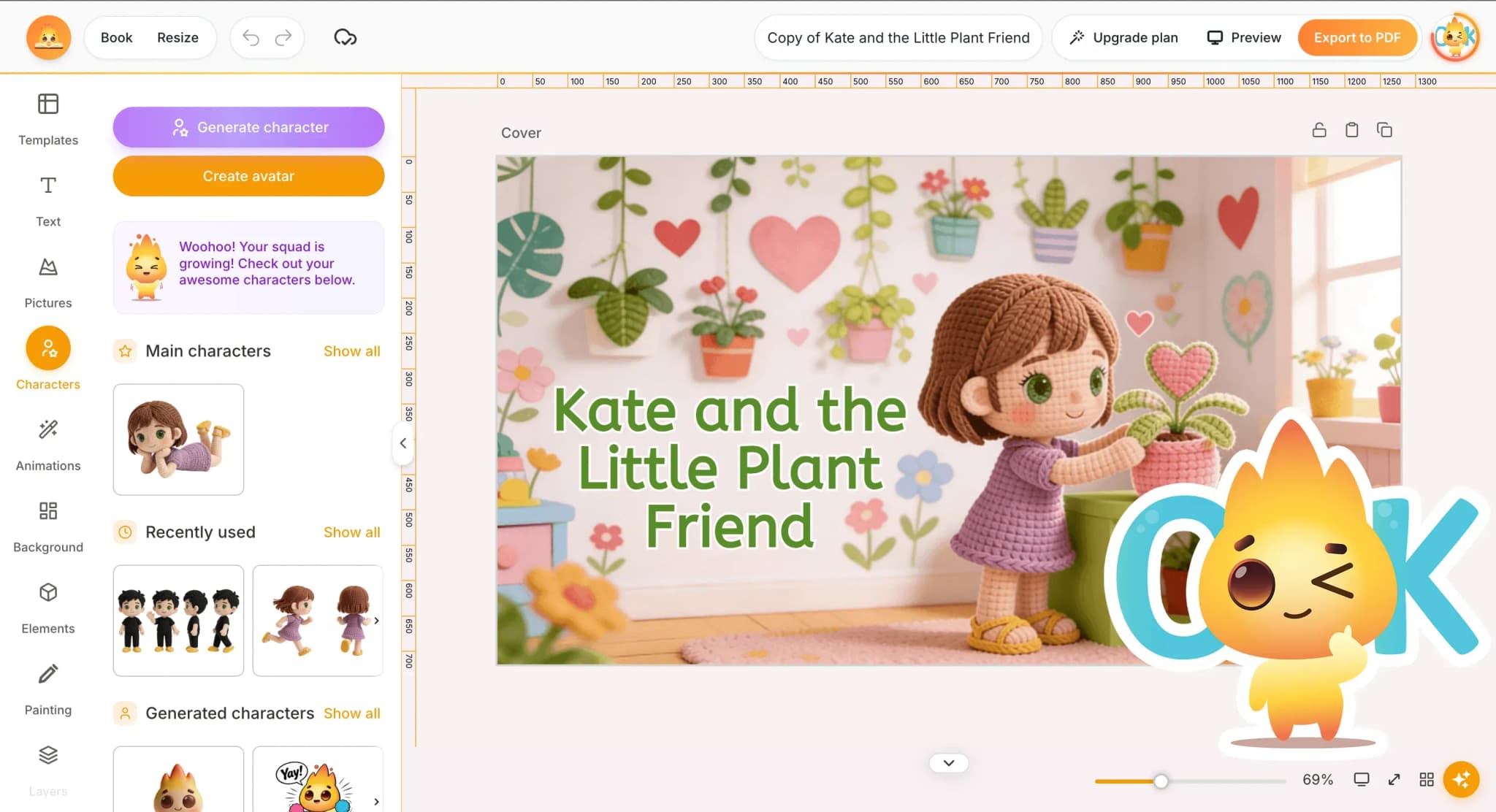
Open the page you want to edit and click the image you'd like to work with. A selection frame appears around it, and the editing toolbar opens on the side. If your page has several overlapping elements, click directly on the one you need, and make sure you've picked the right layer before continuing.
2. Open the background removal tool
In the toolbar, find and click Remove Background. AnyTale analyzes your image and automatically detects the main subject, separating it from everything behind it.
This action uses tokens. You'll see the token cost before you confirm, so there are no surprises.
3. Let AnyTale process the cut-out
Processing takes just a few seconds. While AnyTale works, a short loading indicator appears on the image, so there's no need to refresh or leave the page. When it's done, the background turns transparent and only your subject remains.
Tip: high-contrast images, where the subject stands out clearly from the background, give the cleanest results.
4. Refine the result
Look closely at the edges. If the tool removed too much or left stray pixels behind, use the refine controls:
- Restore to brush back parts of the subject that were cut away.
- Erase to clean up leftover background around hair, ears, or fine details.
- Zoom in for precise touch-ups along tricky edges.
Take your time here, smooth edges make the biggest difference between a quick paste and a polished, professional look.
5. Place the cut-out on your page
When you're happy with the result, confirm to apply it. Your subject now sits on a transparent background, so you can drag it anywhere on the page, resize it from the corners, or layer it over a new scene.
Position it where it looks best and align it with your text and other elements for a balanced layout.
6. Save your work
Click Save to keep your changes. Your edited image is stored with the page, and you can come back to adjust it at any time.
That's it, your subject is free of its background and ready to shine on the page.
Share this article
Need help? Have a question? Chat with our team — we're happy to help.