How to Use AI Character Generation
Learn how to open the characters panel, describe and generate a character, choose a style, and save it to reuse across your AnyTale stories.
How to Use AI Character Generation
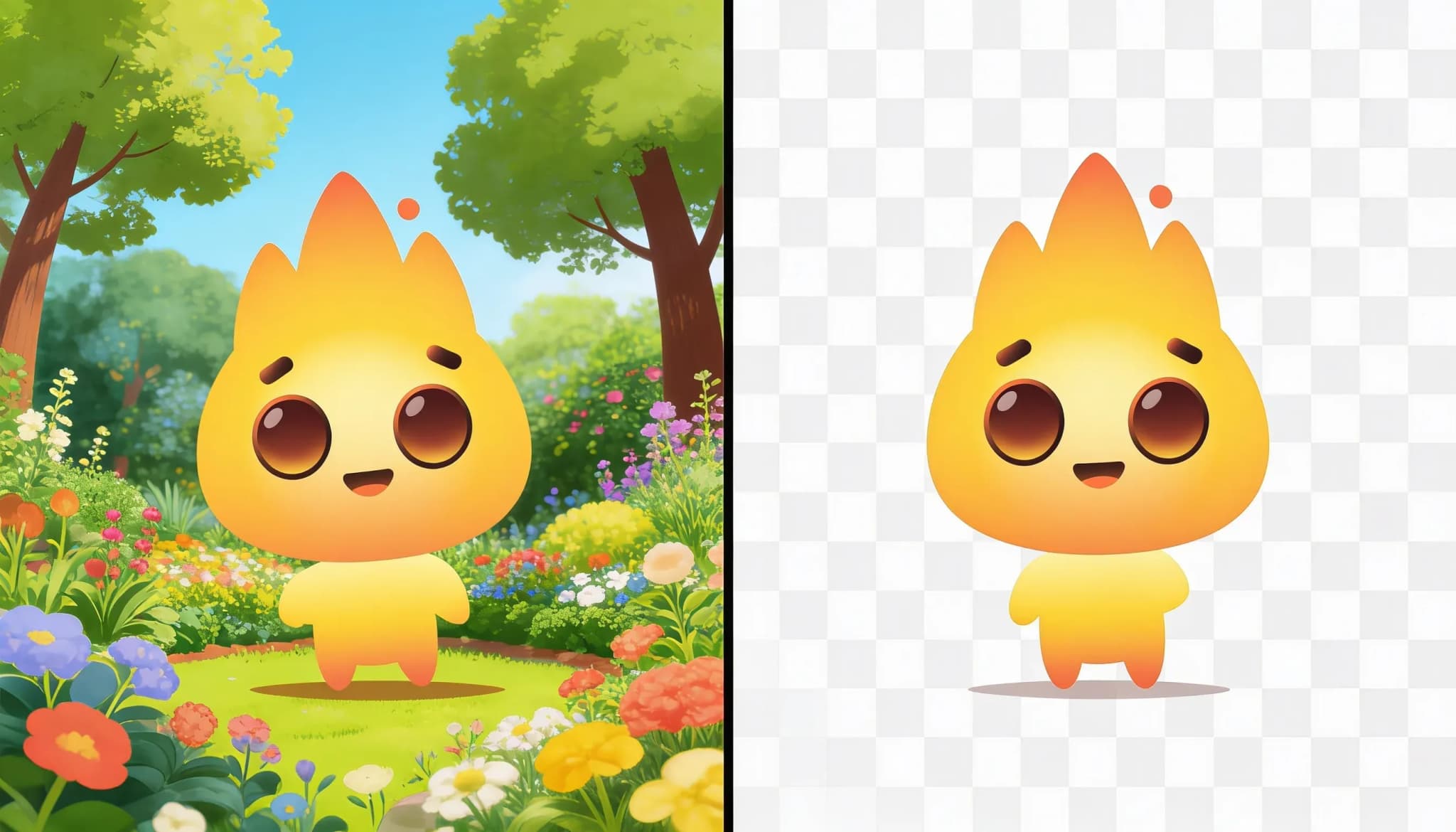
AI Character Generation lets you turn a short description into a fully illustrated character you can reuse throughout your AnyTale book. It keeps the same face, outfit, and personality on every page, so your hero looks the same from the cover to the ending.
1. Open the Characters panel
Inside the story editor, look at the left toolbar and click the Characters icon. The Characters panel slides open and shows any characters you have already created, plus a + New character button to start a fresh one. If you do not see the panel, make sure your project has finished loading.
2. Describe your character
Click + New character and type a clear description in the text box. The more specific you are, the better the result.
Try to mention:
- Who they are (a curious girl, a sleepy bear, a brave robot)
- Key features (curly red hair, round glasses, a green scarf)
- Mood or personality (cheerful, shy, adventurous)
Example: "A 7-year-old girl with curly red hair, freckles, and a yellow raincoat, smiling and adventurous."
Avoid contradictions, like asking for both short and long hair in the same description.
3. Choose a character style
Before generating, pick a style from the style selector so your character matches your book's look. Options include watercolor, classic storybook, soft 3D, and flat cartoon.
For a consistent book, use the same style for every character you create. Mixing styles can make the pages feel disconnected.
4. Generate the character
Click Generate. Each generation costs 5 tokens and is available on the Creator plan and higher. In a few seconds you will see your character illustrated in the style you picked, and it also appears instantly in the Characters panel.
If it is not quite right, adjust your description or style and generate again. Every new attempt costs another 5 tokens.
5. Save the character to reuse
When you are happy with the result, click Save. Your character is added to the Characters panel and stored with your project. Saving does not cost any tokens.
From now on you can:
- Drop the same character onto any page of your story
- Keep their look consistent across every illustration
- Reuse them in other AnyTale books
6. Edit or remove a character
Hover over a saved character in the panel to rename, regenerate, or delete it. Regenerating creates a new version and costs 5 tokens; renaming and deleting are free.
That's it. Describe, generate, and save once. Then reuse your character everywhere your story takes them.
Share this article
Need help? Have a question? Chat with our team — we're happy to help.